The goal
I wanted to see my home network on the living room TV: which devices are connected, to which access point, whether something just showed up or has been gone for hours, and how the Starlink connection is doing. The result is Home Network Command Center (HNCC): a native Android TV / Google TV app, installed on my Haier M90, with an always-on backend on the Mac mini M4.
Update, November 2026. Since late October the backend no longer runs on the Mac mini but on Little Hub, my Linux home lab, and HNCC has become the scanning engine behind HOMEVERSE, which is now the only interface to my home network. The story of the first version stays below; what changed is in The second act.
I set myself four requirements:
- real data only, no demo values;
- an explicit distinction between what is detected and what is estimated;
- full navigation with the remote;
- no exposure to the Internet: everything stays inside the home network.
I built the project with Claude Code: I defined the goal and requirements and tested it on my network, while Claude did the reconnaissance, designed the architecture and wrote most of the code.
In the screenshots I’ve covered IP addresses, MAC addresses, device identifiers and people’s names: it’s data from my home network. The interface is in Italian.
Before the code: getting to know the network
Before writing a single line we analyzed the machine and the network, and there were quite a few surprises.
- The router is a Starlink. Querying it revealed a local gRPC API with no authentication, with server reflection enabled: it exposes the router’s status and the list of clients, with DHCP name, address, interface (Wi-Fi or Ethernet), signal, upstream node and throughput. The router does, however, mask the last three bytes of MAC addresses.
- The Starlink dish answers the same API: satellite link status, sky obstructions, GPS satellites, a per-second history of the last 15 minutes and the list of outages.
- Over mDNS, a Google Cast device and a service from an AVM FRITZ! repeater showed up. Querying the Cast endpoint, we found out that TV wasn’t the Haier but another TV in the house: from then on, we took nothing for granted.
- The Haier M90, once turned on and connected via
adb: Android TV 14 (API 34), MediaTek SoC, 32-bit userspace, 4K panel with a 1920×1080 interface, meaning a 960×540 dp canvas.
A discovery on macOS 27
During the first scan, the ARP table was empty and the Mac’s own MAC showed up as 02:00:00:00:00:00. Comparing different interpreters, we isolated the cause: Homebrew’s Python, which is ad-hoc signed, gets masked MACs and an empty ARP table, while the system Python and the signed python.org build see everything. The backend therefore uses the python.org Python, and flags the problem on its own if it comes back.
Architecture
Mac mini M4 (always on)                        Haier M90 TV (Google TV)
┌───────────────────────────────────┐  REST   ┌──────────────────────────┐
│ FastAPI (LAN only)                │◄───────►│ Kotlin + Compose TV app  │
│  multi-source scanner → SQLite    │WebSocket│  + screensaver           │
│  Internet and traffic monitor     │         └──────────────────────────┘
│  live WebSocket updates           │         ┌──────────────────────────┐
│  web dashboard · mDNS announce    │◄───────►│ Mac / iPhone (browser)   │
│  launchd service                  │         └──────────────────────────┘
└───────────────────────────────────┘- Backend: Python 3.14, FastAPI, Uvicorn, SQLite in WAL mode, zeroconf for mDNS and gRPC with reflection to talk to the router and the dish. About 4,000 lines, plus about 800 for the web dashboard.
- App: Kotlin 2.2, Jetpack Compose with
androidx.tv:tv-material, OkHttp 5 for REST and WebSocket, kotlinx.serialization. About 4,400 lines. The release APK, signed and minified with R8, weighs 1.5 MB. - Always on: the backend runs as a
launchdLaunchAgent with automatic restart. It keeps working even when the TV is off.
Why the backend doesn’t run on the TV
We considered it, but it doesn’t pay off. Since Android 10, apps can’t read the ARP table, so we’d lose MACs, manufacturers and a stable identity for each device. On top of that, Google TV suspends background apps when it goes into standby, so history and alerts would stop exactly when the TV is off. It needed an always-on computer: at first the Mac mini, now Little Hub.
Finding devices
No single method is enough. A phone may ignore ping, the router knows names but not full MACs, the repeater knows its own clients but not the others. So the scanner combines several sources on every cycle: one cycle every 60 seconds, and about 12 seconds to scan 253 addresses.
| Source | What it provides |
|---|---|
| ICMP ping | presence; also forces ARP resolution |
| ARP table | MAC and presence: an entry confirmed right after the ping proves the device answered, even if it blocks ping |
| Starlink router (gRPC) | DHCP names, interface (2.4/5 GHz Wi-Fi or Ethernet), signal, upstream node |
| FRITZ! repeater (TR-064) | associated Wi-Fi clients with the full MAC, band and SSID |
| mDNS / Bonjour | announced names, model, services (Cast, AirPlay, printers…) |
| SSDP / UPnP | name, manufacturer and model from the device’s XML description |
| TCP probe | only for known devices that don’t answer ping: even a “connection refused” proves the host is on |
The observations are then merged into a single inventory:
- identity is based on the MAC: the router’s partial prefixes are joined with the full MAC read from ARP, and a device that changes IP isn’t duplicated (its address history is kept);
- private MACs, the randomized ones used by phones and tablets, are recognized by a specific bit in the address, and for those the manufacturer isn’t estimated;
- the manufacturer comes from the official IEEE registry;
- for the name, a manual name wins, then the announced name, then the DHCP name. Names that are just technical identifiers are discarded: an Amazon device announced itself with a long hex string, and now shows up as “Dispositivo Amazon” (Amazon device), from its manufacturer;
- the category is always a reasoned estimate (for example “announces Google Cast and Android TV Remote” or “announces Amazon WhisperPlay”) and never overrides a manual choice;
- every device shows its identity confidence: high, medium or low.
Online, uncertain, offline
A device is online if it answered in the last cycle, uncertain after about two and a half cycles without an answer, and offline only after 10 minutes and 3 consecutive scans without an answer. Alerts (new device, long absence, back online) have configurable thresholds and a cooldown, and a backend restart doesn’t trigger a burst of notifications.
Topology, without making things up
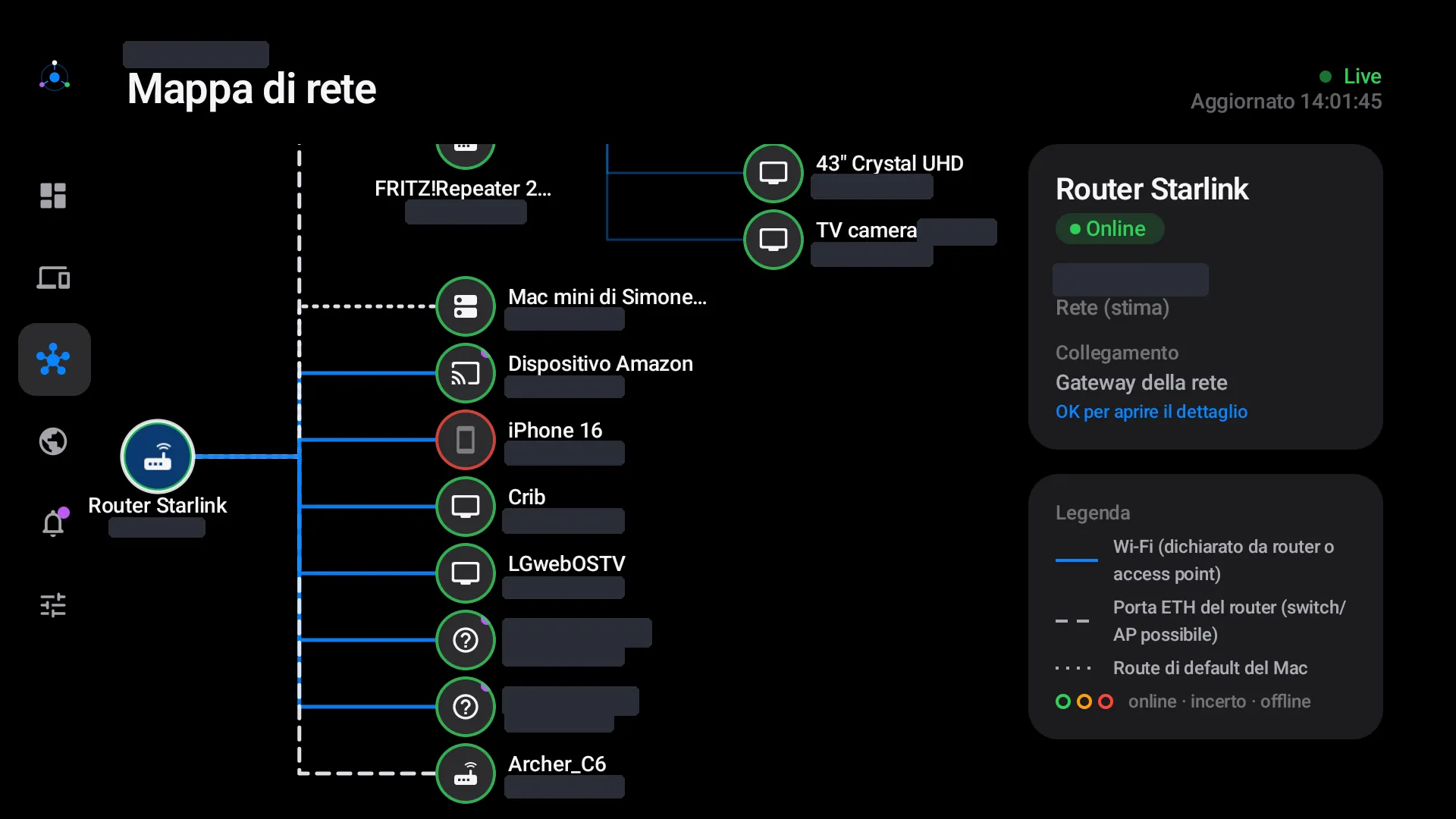
The Starlink router sees devices attached to the repeater as “Ethernet” too, because the repeater is wired. By querying the FRITZ!Repeater we could link each client to its real access point. If the repeater doesn’t answer for one cycle, the link stays for 5 minutes instead of flickering.
The most important rule is a different one: no link is inferred. A line appears on the map only if a source declares it.
Internet and traffic
With Starlink, the connection is the most interesting thing to watch, so the backend follows it closely:
- Connection status: every 10 seconds the dish reports latency to the Starlink network, current speeds, sky obstruction and the number of GPS satellites.
- History: every minute, the dish’s per-second history, which only covers the last 15 minutes, is aggregated into per-minute samples and kept for 7 days: average latency, packet loss, download and upload peaks.
- Outages: they’re stored with cause and duration. The dish gives timestamps in GPS time, which are converted to real time. Micro-drops of 1–2 seconds, normal with Starlink, stay in the history, but an alert only fires above a configurable threshold, 30 seconds by default. Availability is computed only over the period actually covered by samples.
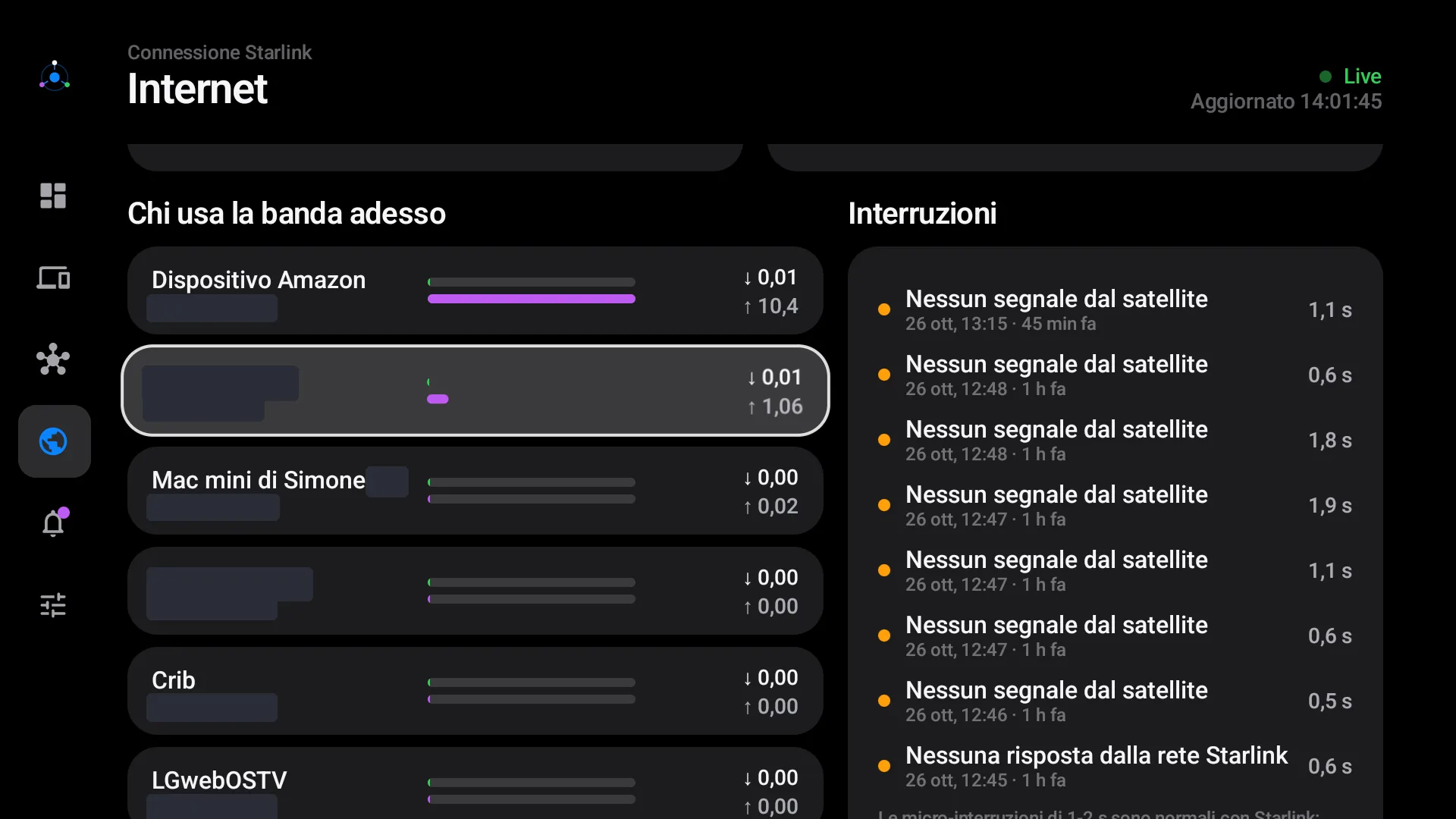
- Per-device traffic: every 10 seconds the router reports the throughput of the last 15 seconds for the Wi-Fi clients connected directly to it. From the router’s point of view, what it sends to a client is that client’s download. Devices behind the repeater or on a cable aren’t measured individually, and the interface says so. No packet is intercepted.
The TV app
The interface is dark, on a black background, with layered gray surfaces, a single accent color and status colors used sparingly. Typography is sized to be read from the couch, and everything sits inside an overscan-safe area.
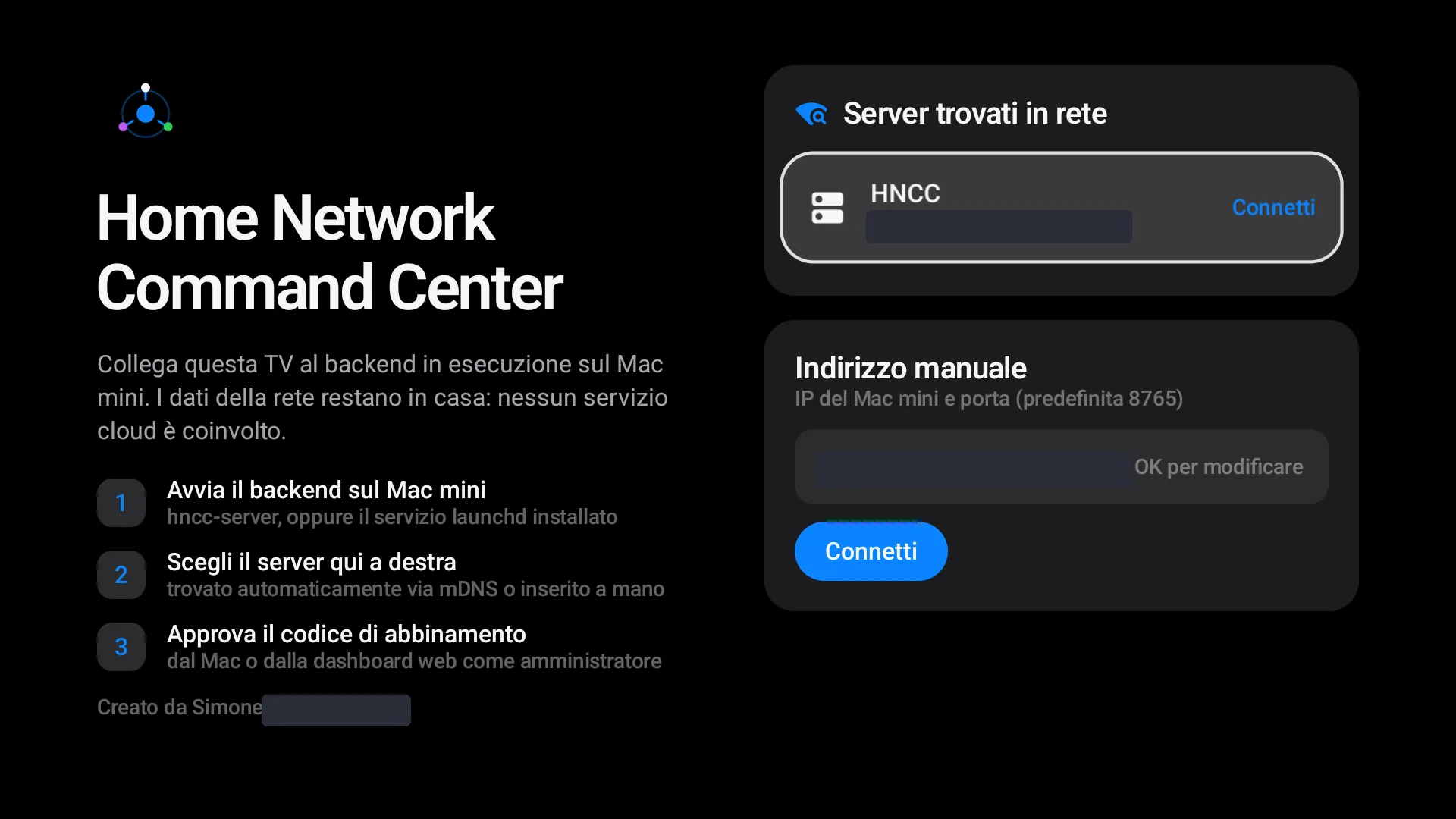
First launch. The backend announces itself over mDNS and the TV finds it on its own; alternatively, you can type the address by hand.
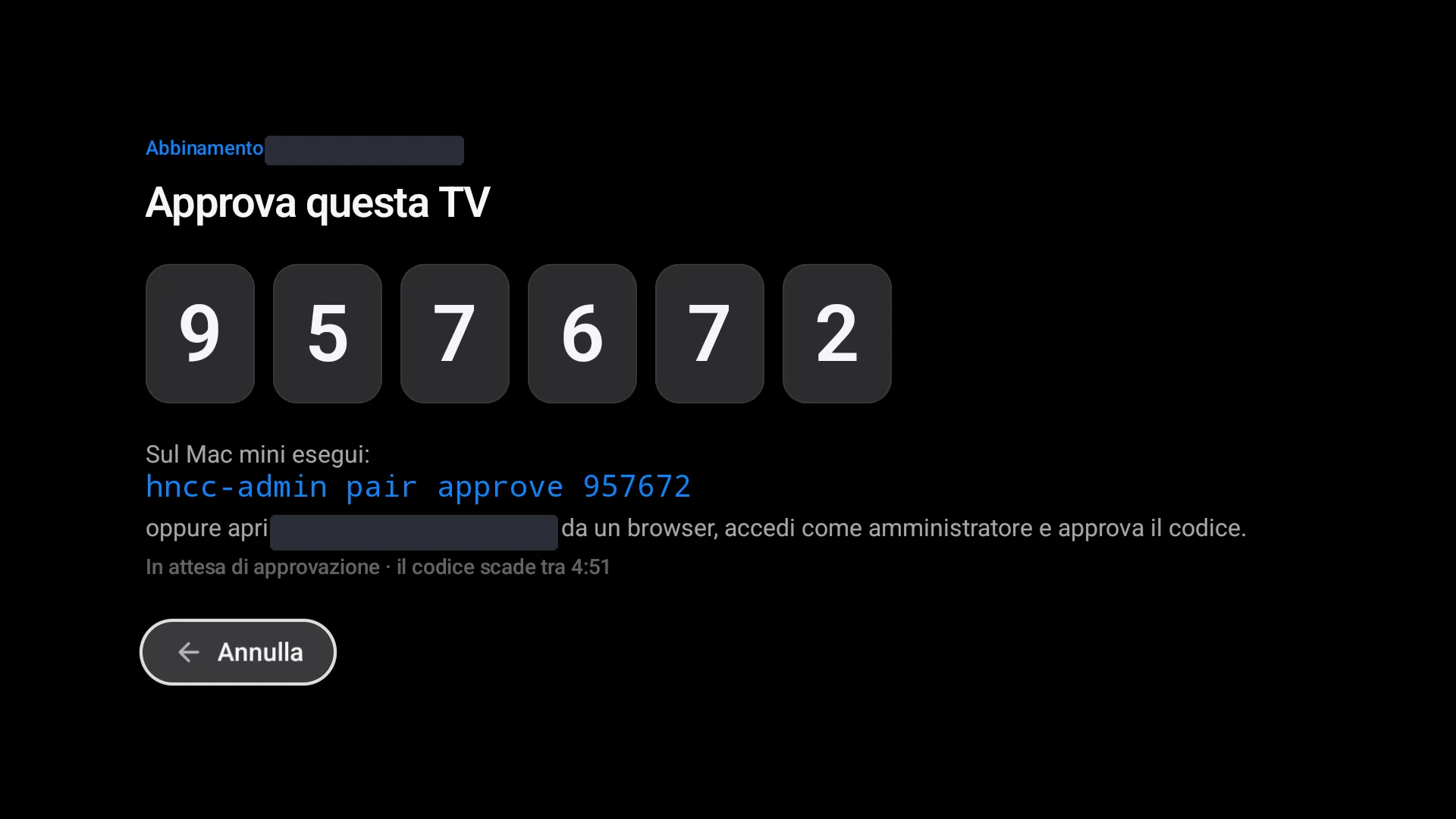
Pairing. The TV shows a 6-digit code, valid for 5 minutes, which you approve from the Mac with hncc-admin pair approve <code> or from the web dashboard.
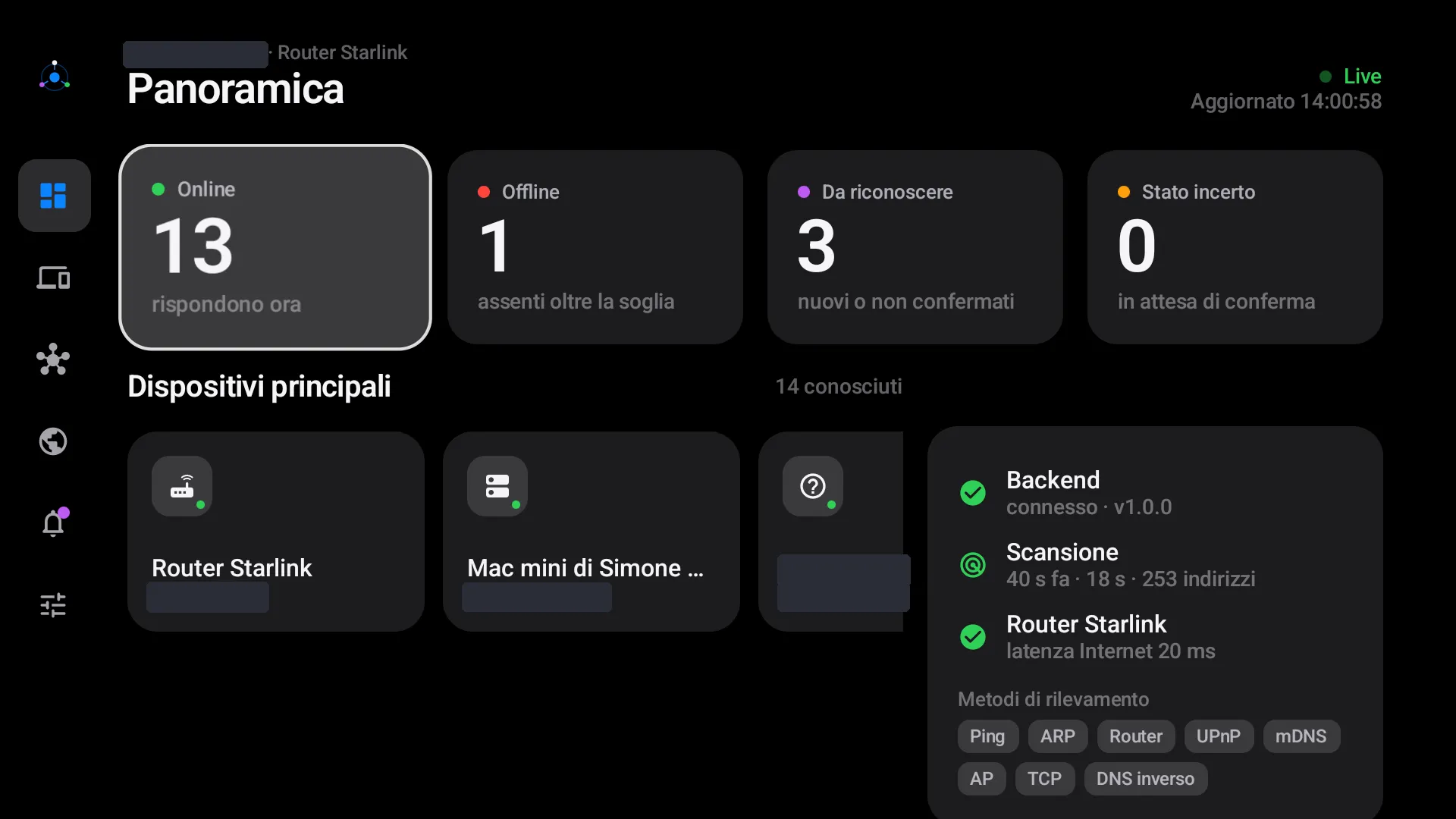
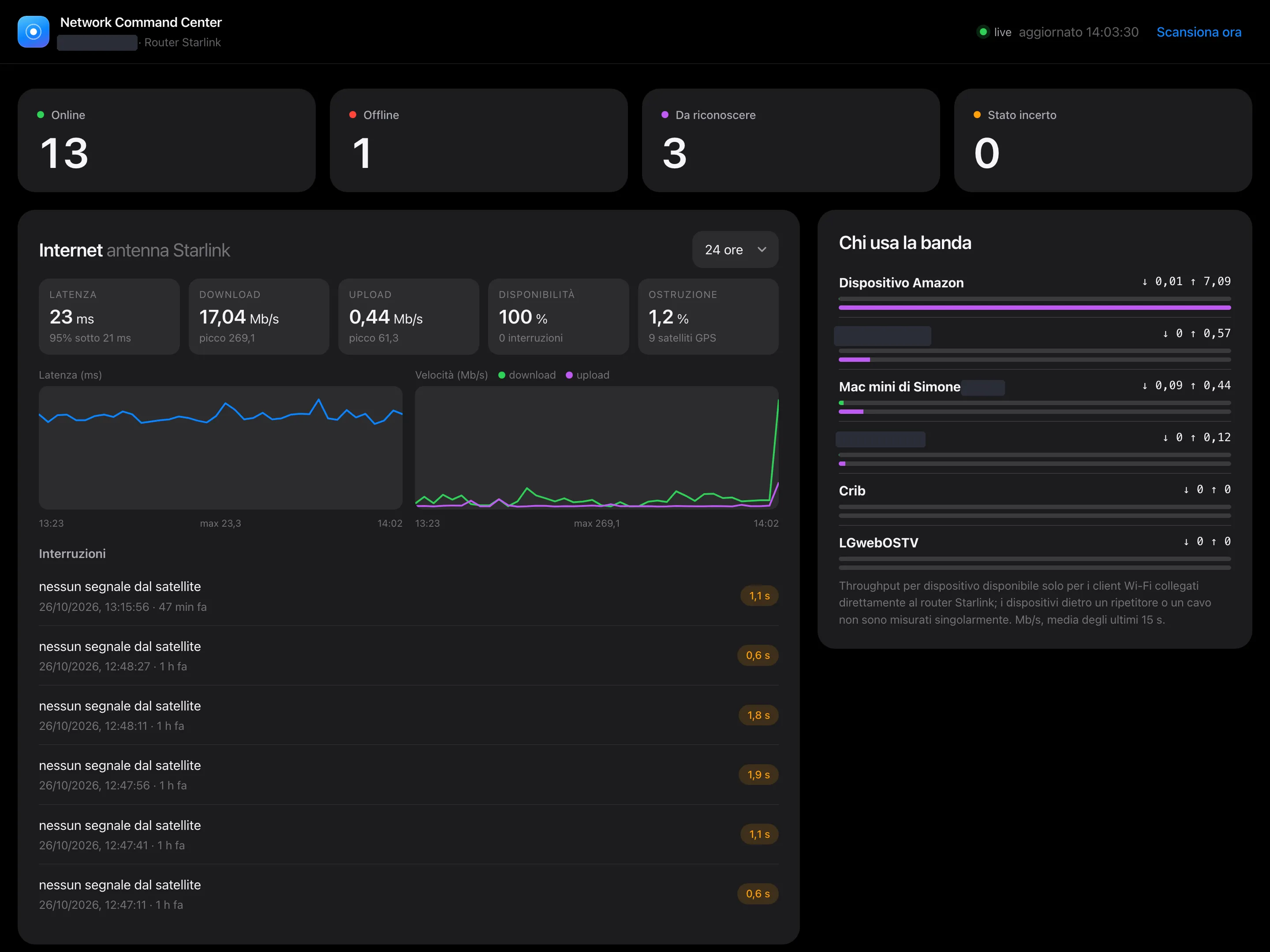
Overview. Live counters (online, offline, to be recognized, uncertain), the main devices, the status of backend, scan and router with Internet latency, and the active detection methods.
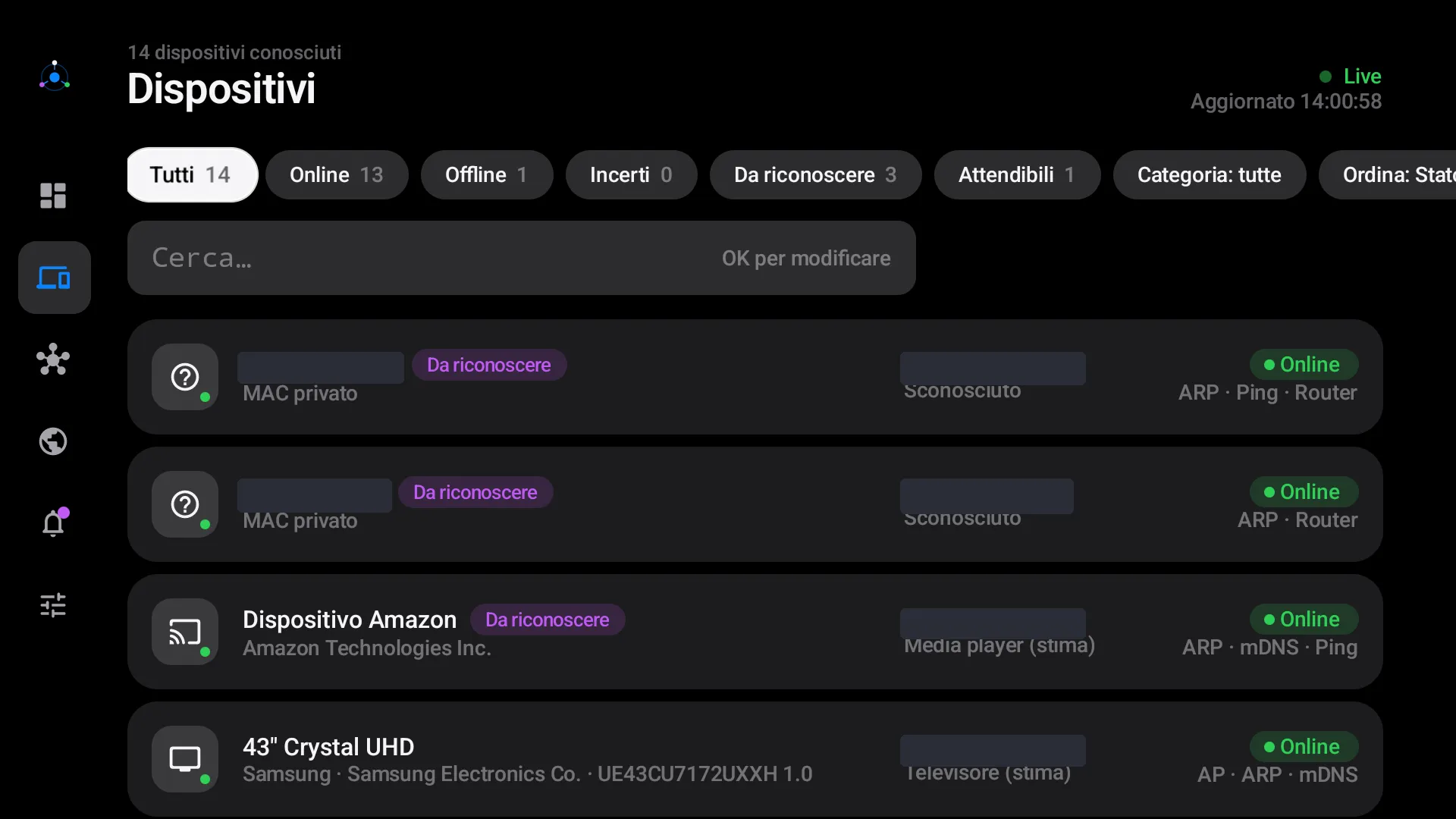
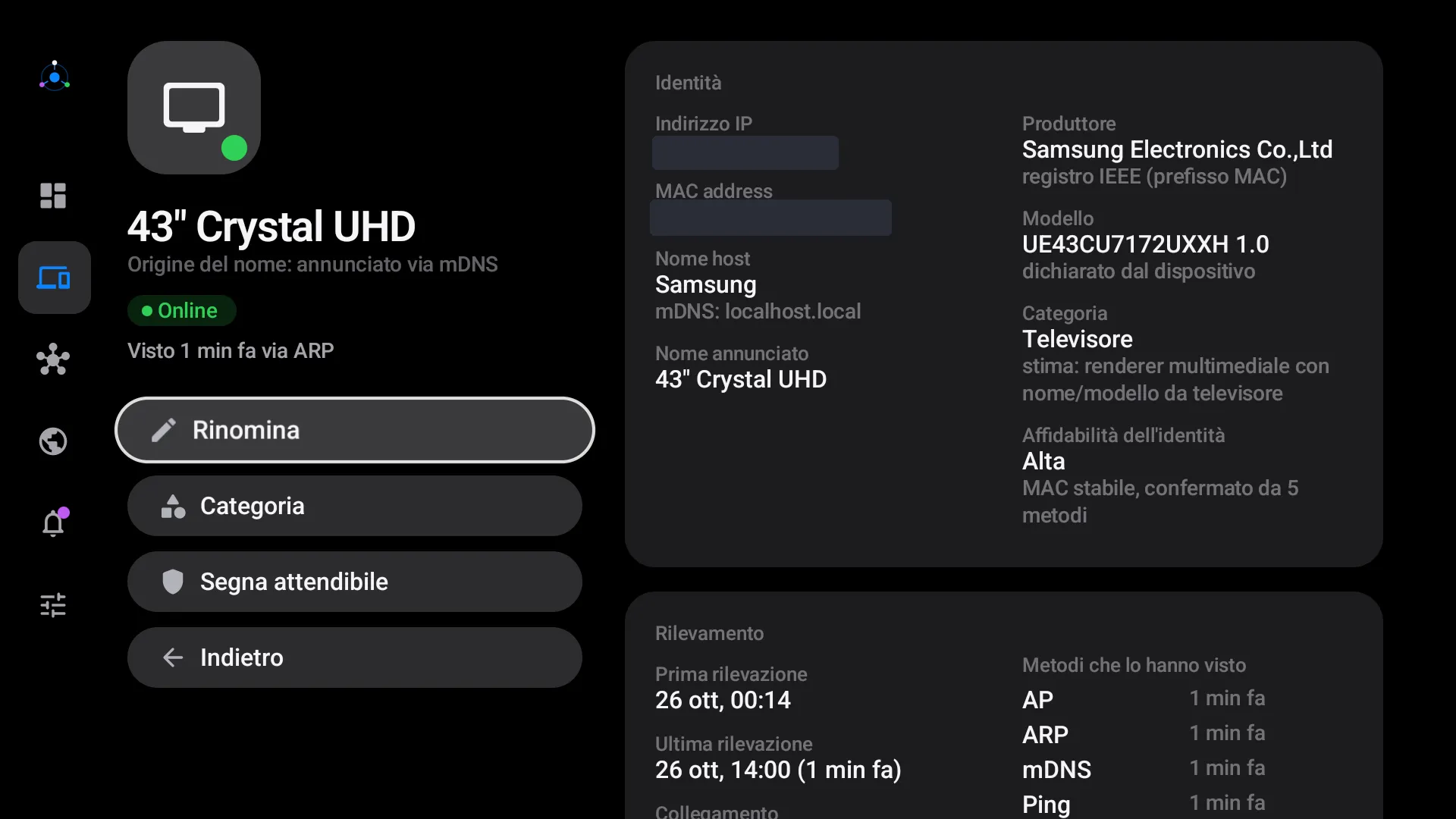
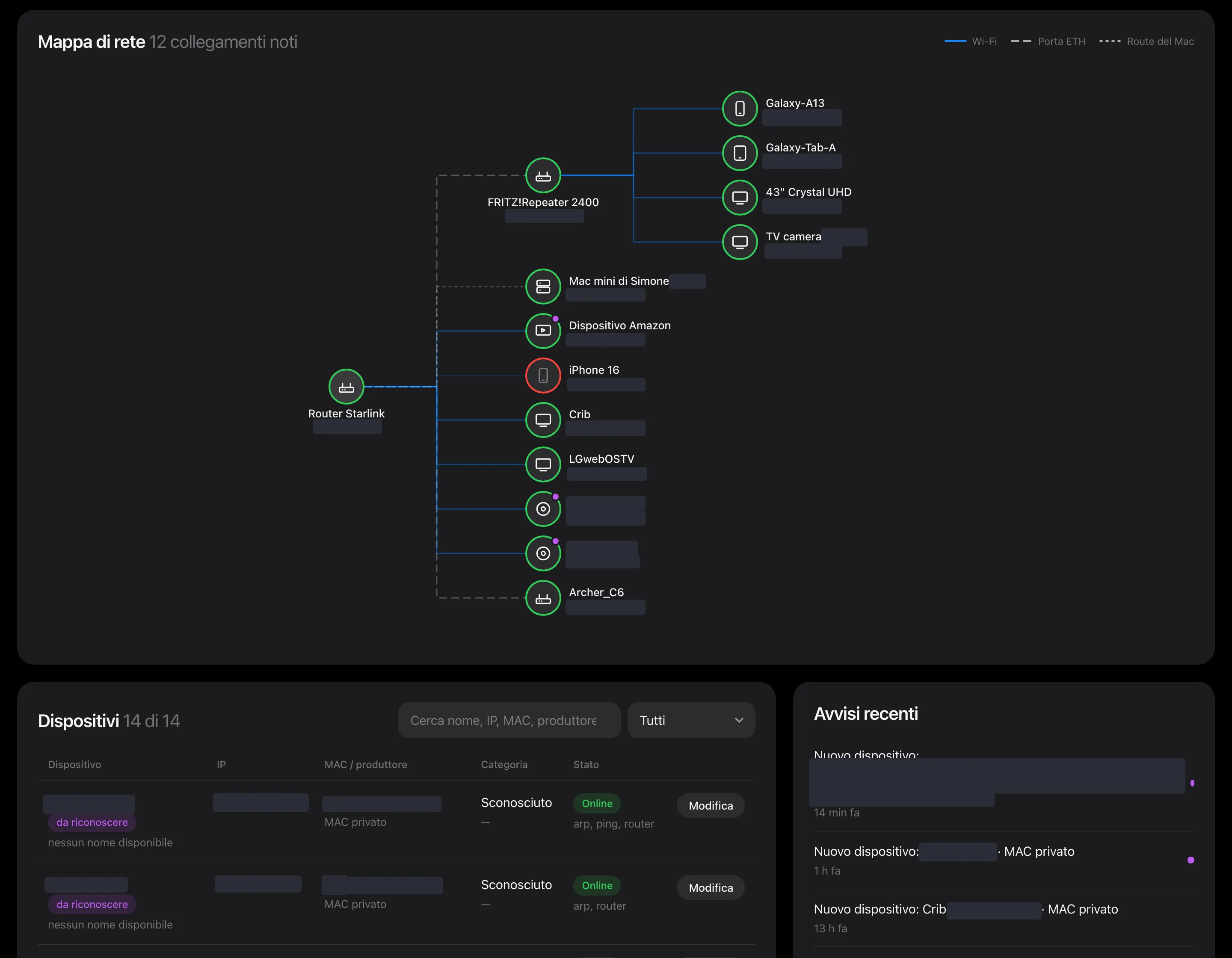
List and detail. The list has filters by status and category, sorting and search. The detail view shows IP, MAC, manufacturer and where it came from, model, estimated category with its reasoning, the methods that have seen the device, its link, address history and events. From here you can rename a device, change its category or mark it as trusted.
Network map. A tree: router, directly connected devices and, for each access point, its clients. A solid line means declared Wi-Fi, a dashed line a router Ethernet port, a dotted line the Mac’s route; the ring around each node shows its status.
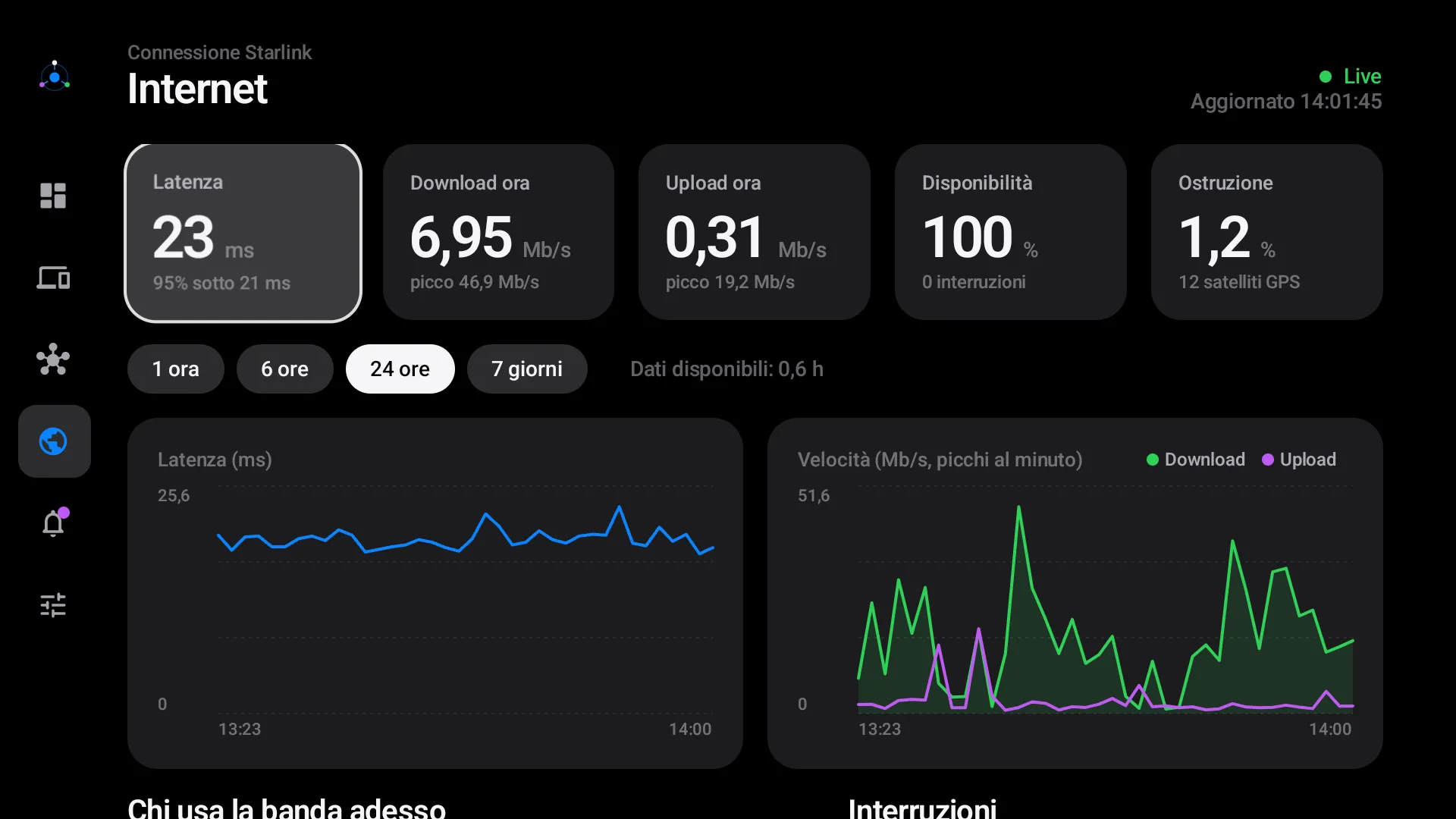
Internet. Latency, current speeds with peaks, availability, obstruction and GPS satellites, with latency and speed charts over 1 hour, 6 hours, 24 hours or 7 days. Further down there’s the “who’s using the bandwidth right now” ranking and the list of outages, with cause and duration.
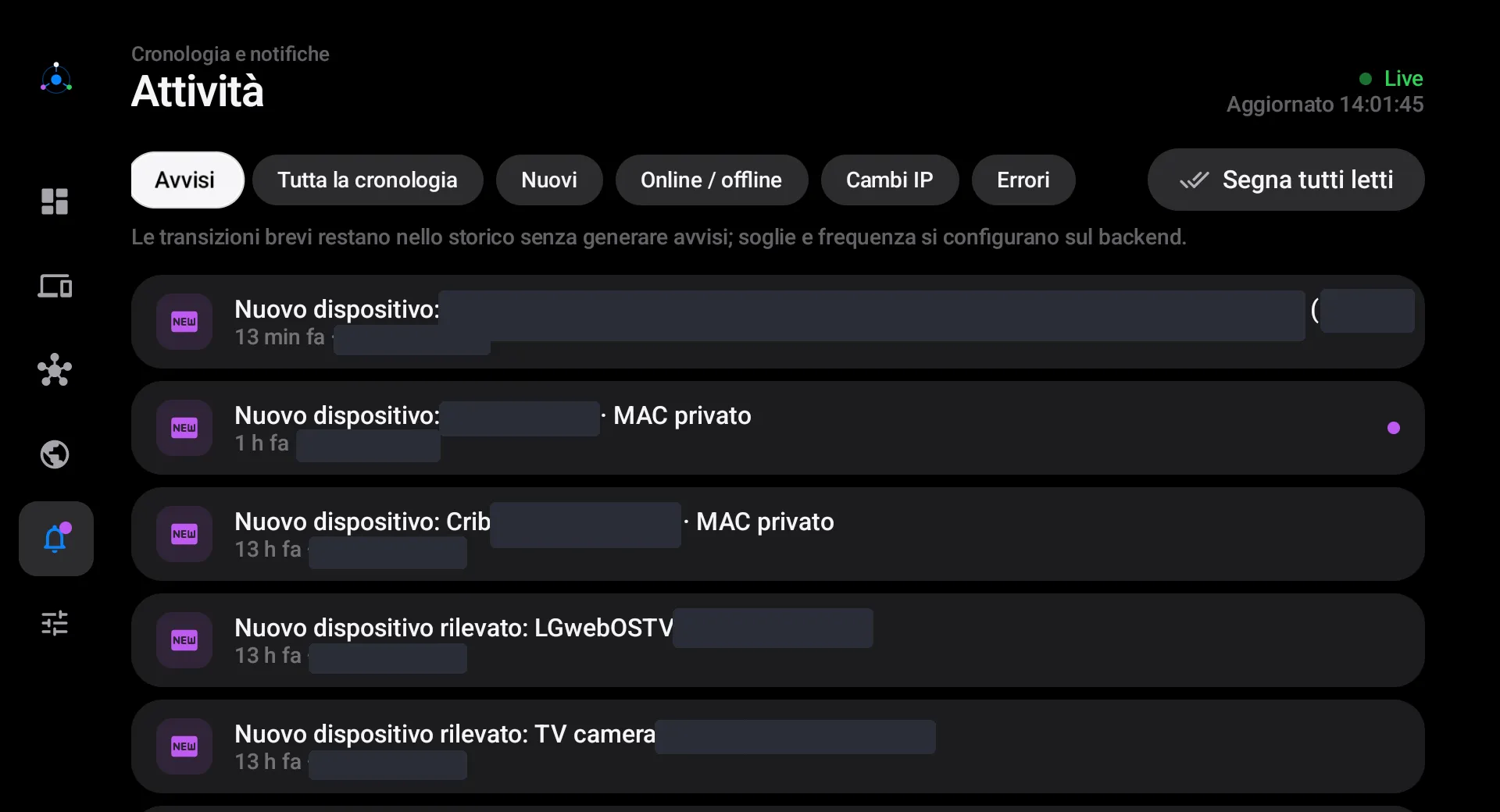
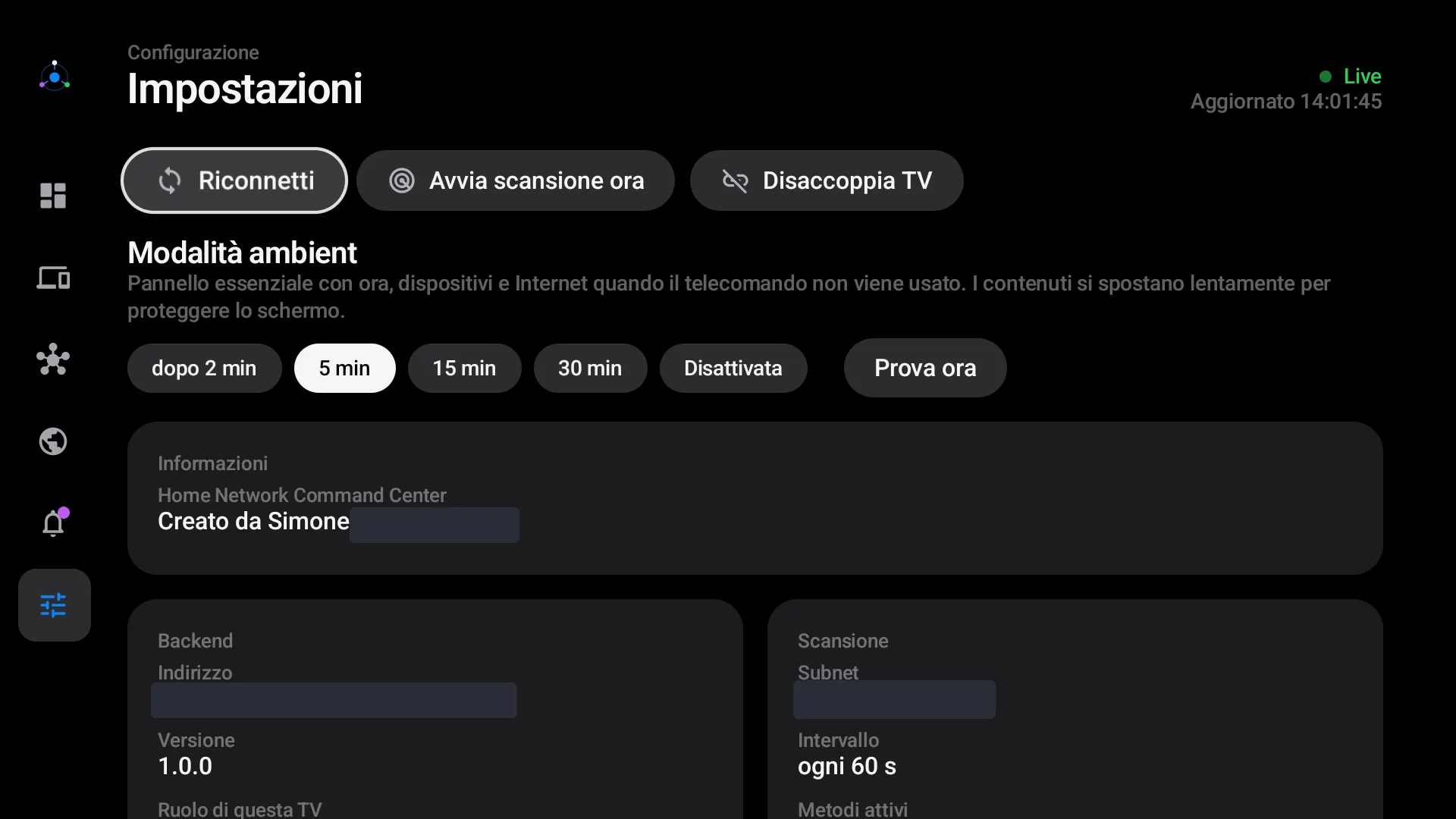
Activity and settings. Alerts and a filterable history; settings cover ambient mode, the backend, scanning, thresholds, detection limits and information about the TV.
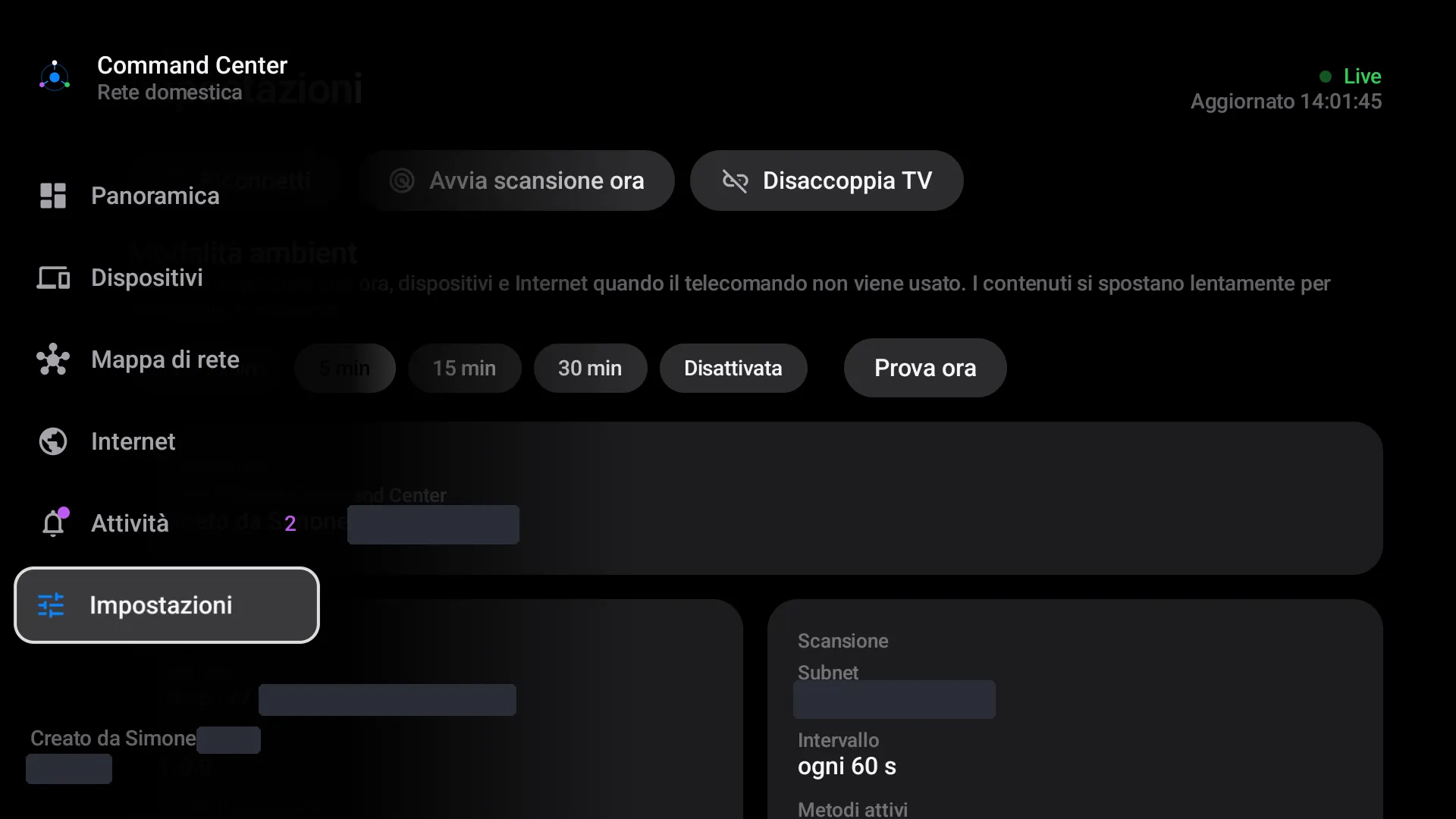
Side menu. It expands when it gets focus from the remote.
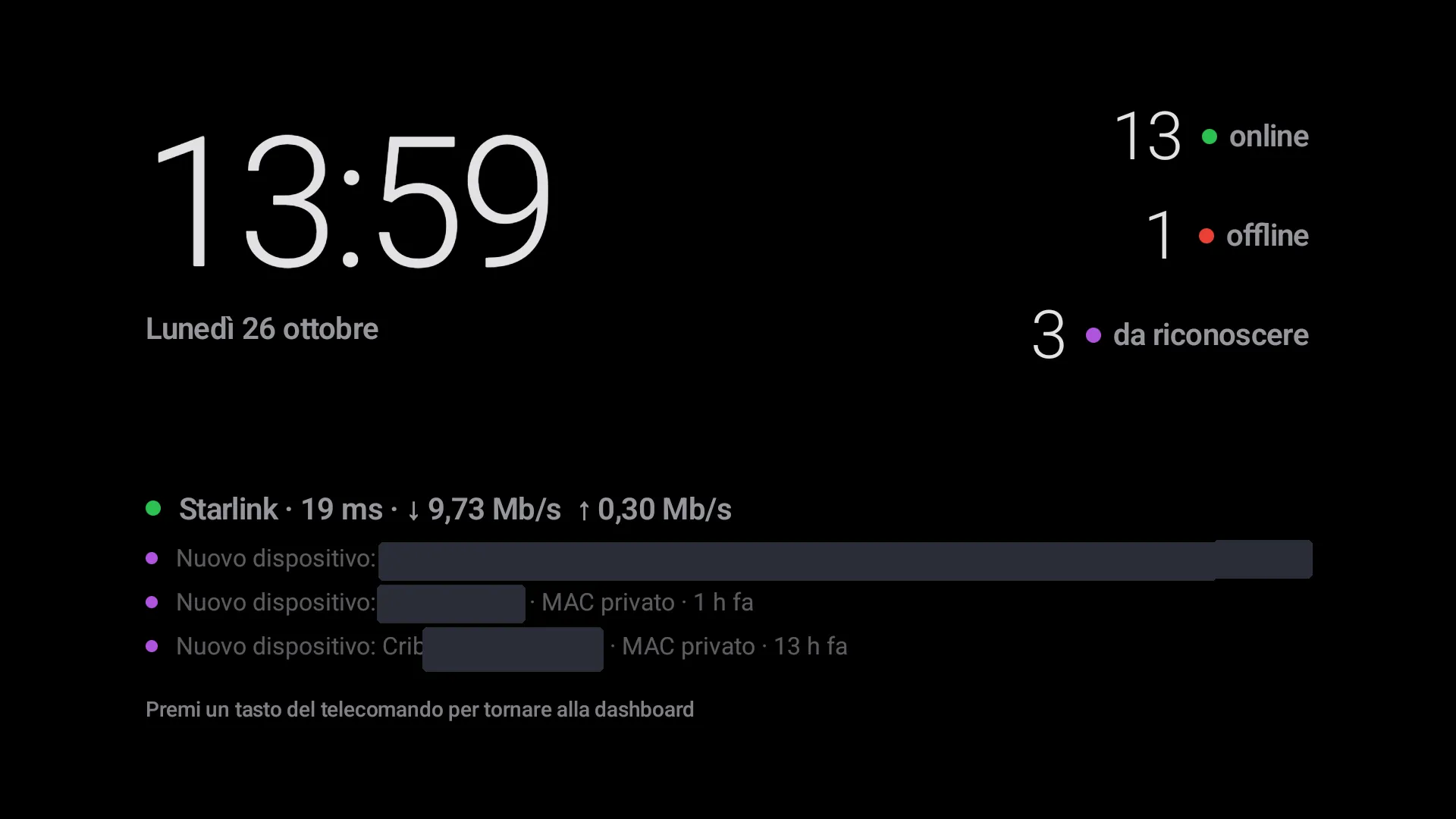
Ambient mode. After a few minutes without touching the remote (2, 5, 15 or 30, or never) the dashboard turns into an essential panel: the time, online, offline and unrecognized devices, Starlink status and the latest alerts. The content shifts slowly to protect the panel from burn-in, and the first key press closes it without triggering any action. The same view also exists as a system screensaver (an Android DreamService), which refreshes its data every 30 seconds when the TV goes into visual standby.
When something goes wrong. If the backend doesn’t respond, a banner with a countdown appears, the data stays visible with the time of the last update, and the connection recovers on its own: exponential backoff up to 30 seconds, an application ping every 20 seconds and a timeout after 60 seconds of silence. If the token is revoked, the TV goes back to the pairing screen. If the TV’s clock is out of sync, the app compensates for the offset from the server’s time.
The web dashboard
The backend also serves a web dashboard, with no external dependencies, that works from the Mac and the iPhone. On the Mac mini, opening it from localhost logs you straight in as administrator; from other devices you pair the browser with the same 6-digit code. It shows the connection with charts and traffic, the network map, the device list and alerts. From here you approve pairings, edit devices and thresholds, and revoke clients.
Security and privacy
An app that lists every device in the house is an interesting target, so security was designed in from the start:
- the backend answers only from the local network: requests from non-private addresses get a 403, and no port is open on the router;
- there are three roles (
viewer,editor,admin); client tokens are stored only as SHA-256 hashes, and the TV’s token is handed over exactly once. Pairing is limited to 5 requests per minute, with at most 5 pending; - the WebSocket authenticates with its first message, so the token never shows up in a URL or a log;
- token-less access from
localhostis protected against CSRF and DNS rebinding: it requires a loopback connection, alocalhostHost header and a custom header that an external site can’t send without a CORS preflight, which is rejected. For the WebSocket, the Origin is checked; - no telemetry. The router, dish and repeater integrations are read-only and there’s no traffic interception;
- scanning is limited to the local private subnet, with bounded concurrency.
Working on a real TV
To install and test the app on the Haier we used adb (Android Debug Bridge) over the network, after enabling debugging on the TV and authorizing the Mac from the screen. With adb we installed the APK, sent virtual key presses identical to the remote’s (arrows, OK, Back), took screenshots to see the result, and read the model, Android version and logs.
Most testing happened on an Android TV emulator with the same logical resolution, so as not to disturb the TV while it was in use. Changes to the TV’s system settings, such as enabling the screensaver, were left to me, as the TV’s owner.
Verification
- 43 backend tests (46 after the Linux port): parsers, identity merging, the online/offline state machine, alert thresholds and cooldowns, authentication, roles, WebSocket,
localhostprotections, access points, Internet history, outages and traffic. Plus 12 app tests. - Contract tests between backend and app: the backend tests generate real JSON responses that the app has to be able to decode. If either side changes format, a test notices.
- Runs on the Android TV emulator and on the real Haier M90: installation via
adbover the network, automatic backend discovery, pairing and live connection.
Bugs you only find in the field
The most instructive part was testing the app on the real TV. Here’s what came up, and was fixed:
- the router reported Wi-Fi signal as a decimal number (
-68.0), while the app expected an integer: the overview wouldn’t load; - for one client, the router reported 3.7 billion MB of traffic: implausible values are now discarded;
- on the TV, the search field opened the keyboard as soon as it got focus, trapping the remote: now the keyboard only opens when you press OK;
- the side menu gave focus to the wrong item and let focus escape past its edges;
- text-only pages didn’t scroll with the remote: their panels are now focusable;
- with the TV clock out of sync, relative times turned into “soon” and the code’s expiry was wrong;
- the Internet section crashed on a piece of text, “95% sotto…” (“95% below…”), that was being interpreted as a format string;
- availability showed 100% next to 11 outages, because the two values covered different periods.
Almost none of these bugs would have come out of automated tests. You need a real router, a real dish, a real TV and a remote in your hand.
The second act: Little Hub and HOMEVERSE
After the first version, HNCC’s role changed. It went from a complete application, with a backend, a TV app and a web dashboard, to a scanning engine queried through its API by HOMEVERSE, the digital twin of my home that I’m building. At the same time the backend moved from the Mac mini to Little Hub: an old laptop with a Ryzen 7 and 24 GB of RAM, always on, running Ubuntu and Docker Compose. The Mac mini is back to being the machine I develop on.
Porting to Linux
The macOS-specific parts became cross-platform: the code picks the implementation based on sys.platform, and the behavior on macOS hasn’t changed.
| Component | macOS | Linux |
|---|---|---|
| Local network | route -n get default, ifconfig | ip -4 route, ip -4 addr, MAC from /sys/class/net/ |
| ARP table | arp -anl | ip -4 neigh: REACHABLE, DELAY, PROBE and PERMANENT count as certain presence, STALE as weak presence, FAILED and INCOMPLETE are dropped |
| Ping | /sbin/ping, timeout in milliseconds | iputils ping, timeout in seconds |
| Data folder | ~/Library/Application Support/HNCC | ~/.local/share/hncc (XDG), or /data in the container |
The new parsers have their own tests, built on real ip route, ip addr and ip neigh output: the backend tests went from 43 to 46, all passing.
In a container, but on the real network
HNCC runs in a python:3.13-slim image with iproute2 and iputils-ping, as an unprivileged user, with a healthcheck every 30 seconds. One detail isn’t negotiable, though: network_mode: host. Ping, ARP, mDNS and SSDP have to see the real LAN, not Docker’s virtual network; inside a bridge the scanner would only ever see the container itself. Ping only needs the NET_RAW capability, which Docker already grants by default.
HNCC as a data source
- The web dashboard is off by default (
HNCC_WEB_UI=false, and it can be turned back on). I no longer use the TV app, but it stays in the repository and compatible with the API. - HOMEVERSE pairs with HNCC like any other client, with the same 6-digit code and the
viewerrole, so it’s read-only. - Every 30 seconds HOMEVERSE reads devices, the links declared by the router and access points, alerts and Starlink status, and merges them into its own inventory without duplicates.
- Names, categories and confirmations edited in HOMEVERSE stay in HOMEVERSE: HNCC is never written to.
The guarantees from the security section still hold: local network only, no ports opened on the router, tokens stored as hashes.
Limitations
- Only the subnet of the computer running the backend is visible: guest networks, VLANs or networks behind another router stay invisible.
- Devices in deep standby may show up as offline, and private MACs can make a device reappear as new.
- Per-device traffic is only available for Wi-Fi clients connected directly to the Starlink router.
- The house’s TP-Link Archer C6 doesn’t expose any management interface on the local network, so its clients, if any, can’t be attributed to it.
- The Starlink router and dish APIs aren’t officially documented and could change with a firmware update.
Next steps
- Device and Wi-Fi signal history.
- Notifications on Mac and iPhone, which will now go through HOMEVERSE.
- Monitoring Little Hub’s services, such as Ollama, which runs Eon.
- Wake-on-LAN.
- TP-Link integration.
- Traffic for every device through SNMP, NetFlow or a dedicated firewall.
Closing
HNCC started from a simple curiosity, seeing who’s connected to the home network, and became a small distributed system: an always-on backend, two different clients, data sources that have to agree, a satellite connection to keep an eye on, and an interface that has to work with four arrow keys and an OK button.
The lesson I take away is the same as in my other projects, seen from a different angle: be clear about what you know and what you’re estimating. A dashboard that invents links, categories or percentages is worse than one that admits it doesn’t know.